
Circle Profile Picture Maker Guide
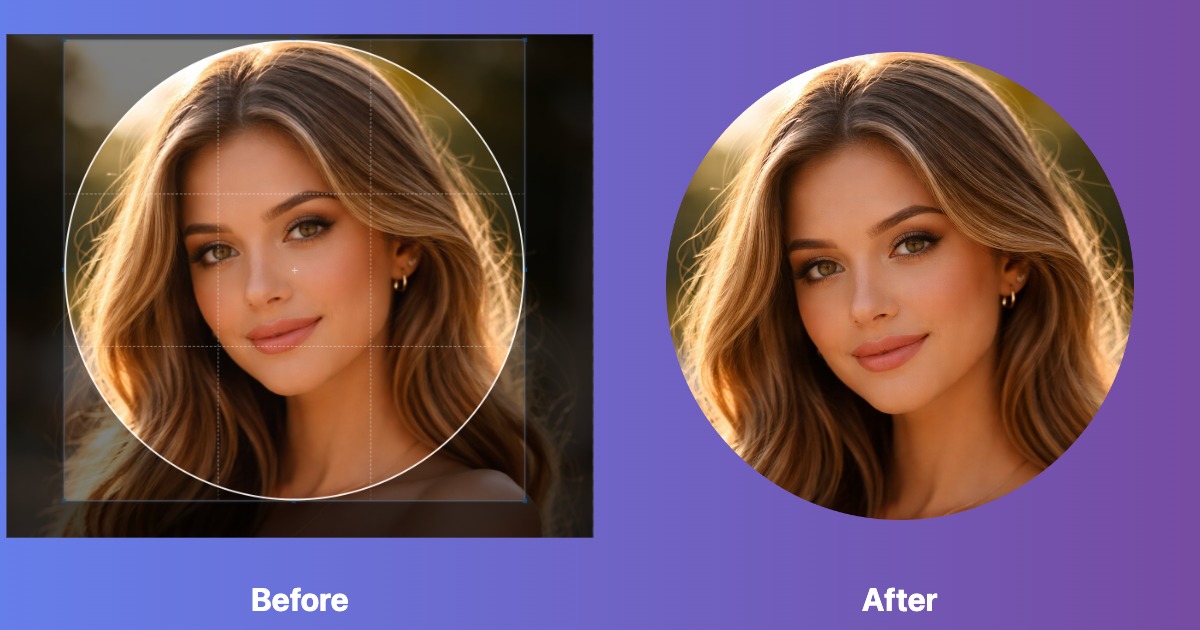
Circle profile pictures are common on social media and professional platforms. A clean round crop with transparent edges or a simple background gives your profile a more polished look.
Why Use Circle Profile Pictures?
Most social platforms automatically crop profile pictures into circles:
- Facebook: Displays profile photos in circular frames
- Twitter/X: Round profile pictures in tweets and profiles
- Instagram: Circular profile images throughout the app
- LinkedIn: Professional headshots in round format
- Discord: Avatar circles for users and servers
- WhatsApp: Contact photos displayed as circles
Creating your image with the circle crop in mind ensures important parts aren't cut off.
How to Make a Circle Profile Picture
- Visit our Image Crop Tool
- Upload your photo (JPG, PNG, or WebP)
- Select the Circle crop shape option
- Adjust the circle position to center your face or subject
- Resize the circle to include the right amount of the image
- Download as PNG with transparent background
The tool automatically creates a perfect circle with smooth edges and transparency.
Best Practices for Circle Profile Photos
Composition Tips
- Center your face: Keep your head in the middle of the frame
- Leave headroom: Don't crop too tight at the top of your head
- Shoulders matter: Include some shoulder/upper body for context
- Look at the camera: Direct eye contact creates connection
- Simple background: Avoid busy patterns that distract from your face
Technical Requirements
- Minimum size: 400 x 400 pixels (most platforms)
- Recommended size: 1000 x 1000 pixels for high quality
- Maximum size: 2048 x 2048 pixels (varies by platform)
- Format: PNG for transparency, JPG for solid backgrounds
- File size: Under 10 MB (most platforms limit uploads to 2 to 5 MB)
Lighting & Quality
- Use natural light or soft indoor lighting
- Avoid harsh shadows across your face
- Make sure your face is well lit and clearly visible
- Use high resolution images to avoid pixelation when cropped
- Consider slight brightness boost for mobile screens
Circle Sizes for Different Platforms
Facebook Profile Picture
Size: 180 x 180 pixels (displayed), upload at least 400 x 400
Appears as a circle on your profile and throughout Facebook. Keep important elements in the center 150px circle.
Twitter/X Profile Photo
Size: 400 x 400 pixels minimum
Displayed as a circle everywhere on the platform. Recommended: 1000 x 1000 for retina displays.
Instagram Profile Picture
Size: 320 x 320 pixels (displayed at 110 x 110)
Upload at least 320 x 320. The circle crop is automatic, so center your subject carefully.
LinkedIn Profile Photo
Size: 400 x 400 pixels minimum, 7680 x 4320 maximum
Professional headshots work best. LinkedIn displays photos in circles with your name.
Discord Avatar
Size: 128 x 128 pixels minimum, 1024 x 1024 recommended
Square images are cropped to circles. Animated GIFs supported for Nitro users.
WhatsApp Profile Picture
Size: 500 x 500 pixels recommended
Displayed as a circle in chats and contact lists. Use square images for automatic cropping.
Common Circle Profile Picture Mistakes
1. Cropping Too Close
Cutting off the top of your head or chin makes photos look awkward. Leave about 10 to 15% padding around your face.
2. Using Low Resolution Images
Pixelated or blurry profile pictures look unprofessional. Always start with at least 1000 x 1000 pixels.
3. Ignoring the Circle Preview
What looks good in a square might not work in a circle. Always preview the circular crop before uploading.
4. Busy Backgrounds
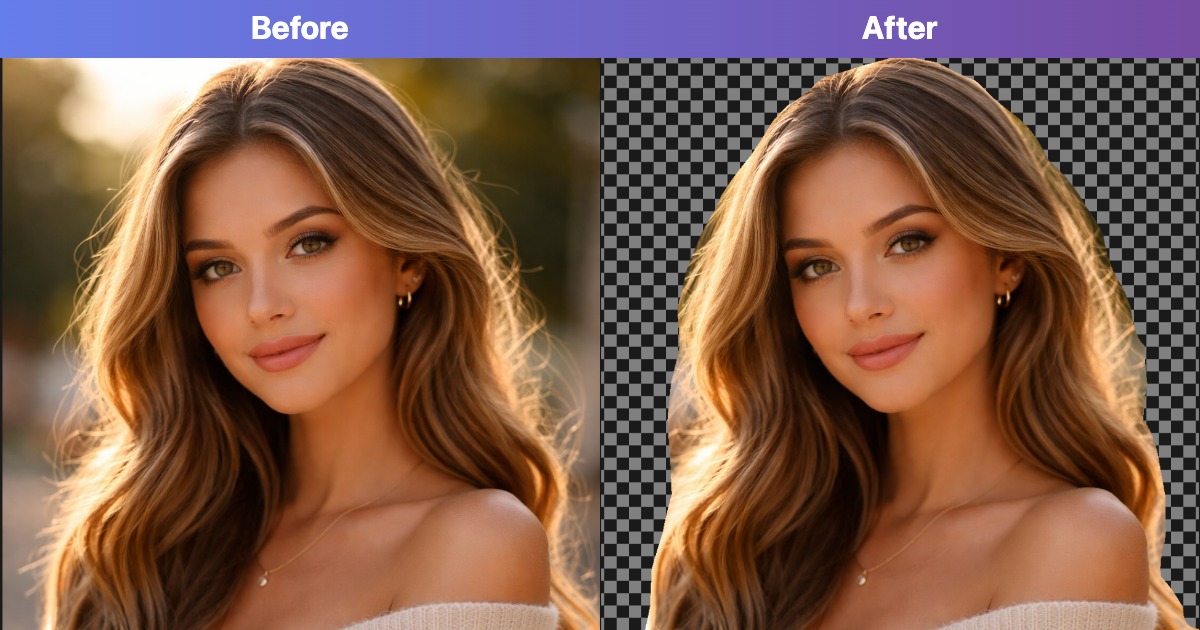
Complex backgrounds compete for attention. Use solid colors or remove the background entirely for a clean look.
5. Subject Placed Off Center
Positioning yourself to one side can result in awkward cropping. Keep your face centered in the circle.
Professional vs. Personal Profile Pictures
Professional (LinkedIn, Email, Business)
- Business casual or formal attire
- Solid neutral background (white, gray, blue)
- Professional lighting with no shadows
- Friendly but professional expression
- High resolution and sharp focus
- Updated within the last 2 years
Personal (Social Media, Messaging)
- Casual clothing that reflects your style
- Creative or colorful backgrounds acceptable
- Natural lighting or artistic effects
- Genuine smile or a more personal expression
- Can include filters or creative edits
- Update as often as you like
Adding Background Colors or Effects
After creating your circle crop, you can enhance it further:
Transparent Background
Save as PNG to preserve transparency. This works great over any background color the platform uses.
Solid Color Background
Add a white, black, or brand color background in any image editor. This can make your photo stand out on certain platforms.
Border or Ring
Some platforms (like Instagram Stories) add colored rings to profile pictures. You can manually add a subtle border for consistency.
Free Tools for Circle Profile Pictures
Our suite of free image tools makes it easy to create perfect profile pictures:
- Circle Crop Tool: Create perfect circular crops with transparent backgrounds
- Background Remover: Remove backgrounds for clean, professional looks
- Image Resizer: Adjust dimensions to meet platform requirements
- Image Optimizer: Compress files while maintaining quality
Create Your Circle Profile Picture Now
Use it online for free with no download or sign up required.
Make Circle Profile Picture