
How to Blur a License Plate, Text, or Image Edges Online
Sometimes you need to hide information, and sometimes you just want a softer visual effect. The important part is choosing the right blur tool for the job so the result looks intentional and the hidden detail stays unreadable.
When Should You Blur Part of an Image?
- Privacy: Hide license plates, addresses, phone numbers, or names before sharing a photo.
- Moderation: Remove identifying details from screenshots, listings, or reports.
- Design: Blur image edges to guide focus toward the center.
- Content cleanup: Hide text or background distractions without recropping the whole image.
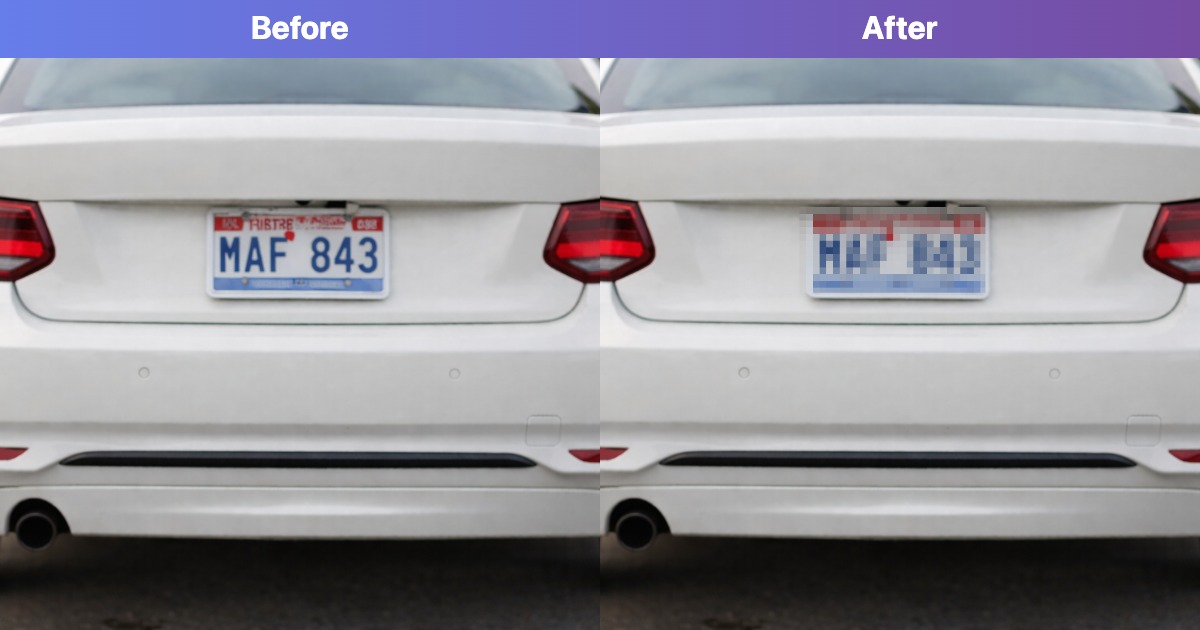
How to Blur a License Plate
Best Tool for This Job
Best for: Cars, street photos, marketplace listings, and parking images
- Open the license plate blur tool.
- Upload your image.
- Draw a rectangle over the plate.
- Increase blur intensity until the characters are unreadable.
- Download the final image.
This is the best choice when you need a precise privacy edit and want the rest of the photo to stay sharp.
How to Blur Text in an Image
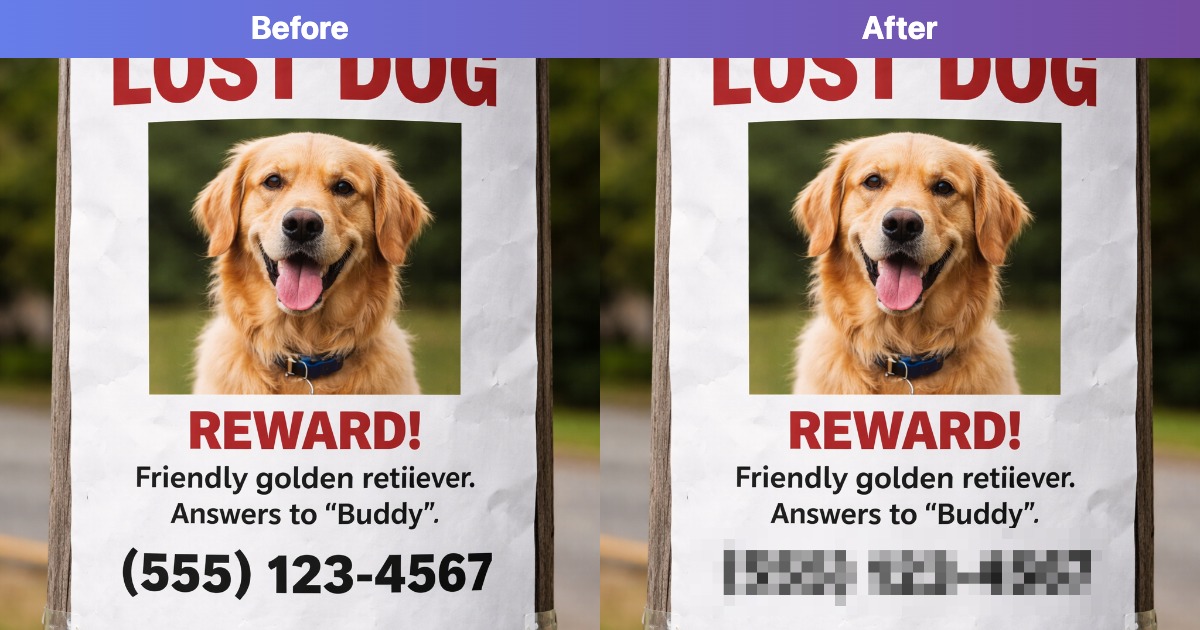
For screenshots, labels, or forms, use Blur Text in Image. It works the same way as plate blur, but the intent is different: instead of hiding a car plate, you are hiding personal or business information inside text blocks.
- Good for: email addresses, phone numbers, order numbers, street addresses, and usernames
- Helpful when: you want to share a screenshot publicly but keep personal details private
- Tip: blur a slightly larger area than the text itself so ascenders and descenders are still hidden
How to Blur Image Edges
Best Tool for This Job
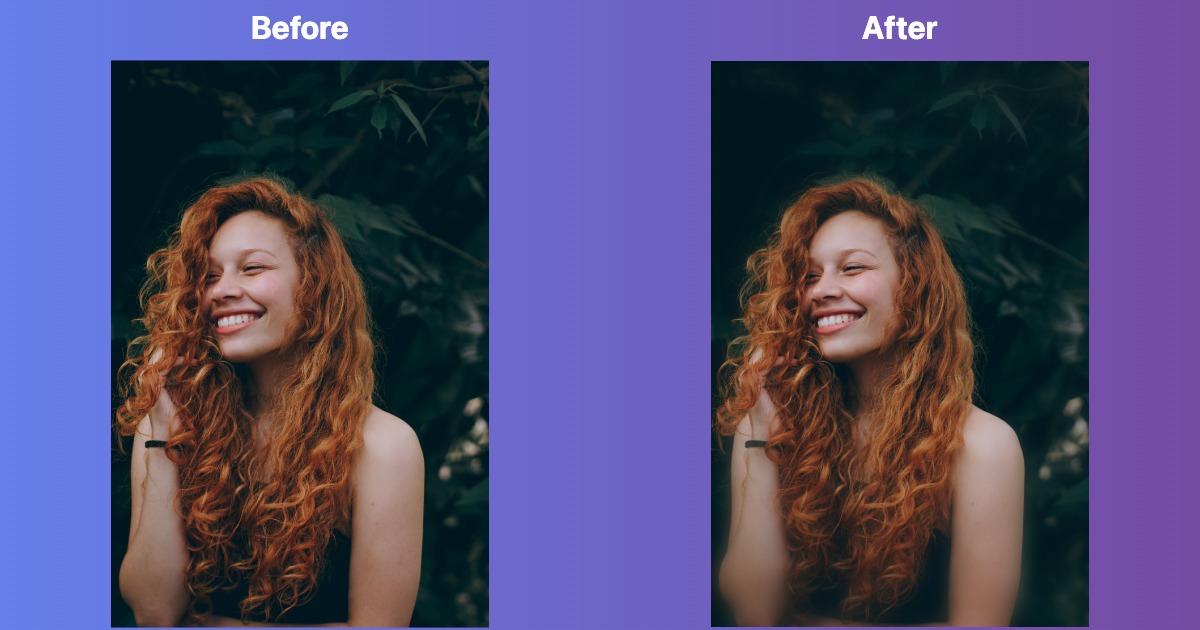
Use:Blur Image Edges
Best for: portraits, product shots, thumbnails, and visual focus effects
Edge blur is not mainly for hiding sensitive information. It creates a vignette style effect so the viewer notices the center first. This is useful when the corners are distracting or when you want a softer background feel without removing the whole border.
- Use a subtle preset for portraits and professional thumbnails.
- Use a stronger preset for dreamy backgrounds or fast design mockups.
- Keep the center subject clear so the effect still looks intentional.
Which Blur Tool Should You Use?
| Goal | Best Tool | Why |
|---|---|---|
| Hide a car plate | Blur License Plate | Lets you draw a precise rectangle over the plate only |
| Hide private text | Blur Text in Image | Useful for screenshots, receipts, forms, and labels |
| Soften the outer frame | Blur Image Edges | Keeps the center sharp while fading the edges inward |
Best Practices for Blurring Sensitive Details
- Blur more than you think: cover a small margin around the target so no characters remain readable.
- Check the preview at full size: text that looks hidden on a small preview may still be legible when zoomed in.
- Do not rely on weak blur: if the goal is privacy, increase the intensity until recovery is unrealistic.
- Keep the rest of the image untouched: targeted edits usually look cleaner and more professional.
Common Blurring Mistakes
1. Blurring Too Narrow an Area
If you cover only the exact letters or digits, the surrounding shapes can still reveal the content. Leave extra padding around the target.
2. Using Edge Blur for Privacy
Edge blur is a style effect, not a censoring tool. If the sensitive content is in the middle, use a targeted blur tool instead.
3. Forgetting Secondary Details
License plates are not the only identifiers. Look for parking permits, VIN stickers, house numbers, usernames, and labels elsewhere in the frame.
4. Sharing the Original by Accident
Always export and share the edited version, not the original file. Keep filenames clear so the safe copy is obvious.
Extra Blur Tools You May Also Need
- Blur Face: hide faces in photos when privacy matters more than the background.
- Blur Entire Image: soften the whole frame for placeholders or abstract backgrounds.
- Blur Background: keep the subject clear while reducing background distractions.
Blur a License Plate or Other Sensitive Detail
Use the targeted blur tool to hide private information without softening the entire photo.
Open Blur Tool